


Ever get annoyed when your headphones just won’t connect? Pairing your JBL headphones is super simple and can feel a bit like flipping a switch that lights up your entire day. With a couple of gentle button presses and a quick flash from the LED, you’re moments away from enjoying your favorite music.
In this easy guide, we break down each step so the setup feels as smooth as cruising your favorite playlist. Get ready to listen the way music was meant to be enjoyed.
Quick Guide: Step-by-Step Pairing for JBL Headphones
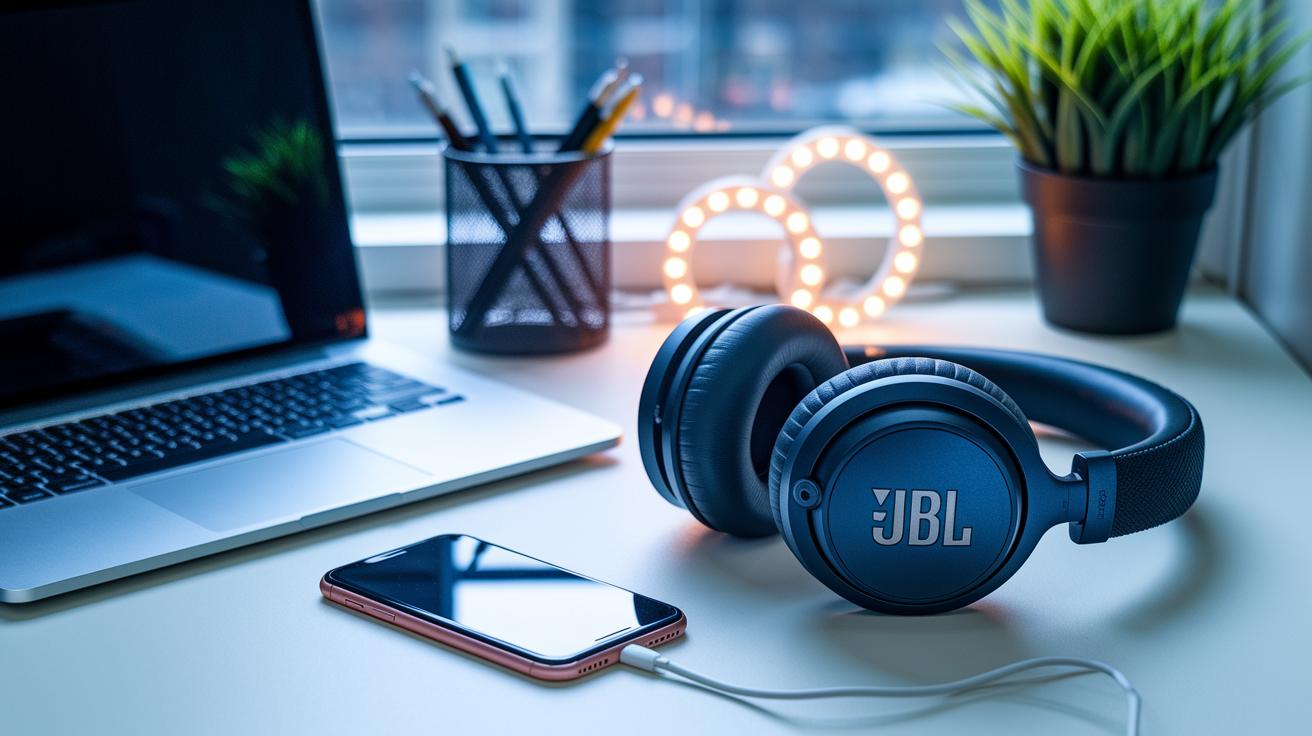
Pairing your JBL headphones is simple and speedy. When you activate pairing mode, your headphones become visible to your phone, tablet, laptop, or any Bluetooth device so you can connect with ease. Whether you're using them as TV headphones or a headset for your computer, the process is designed to be straightforward and hassle-free.
To start, check if your headphones have a Bluetooth button on the earcup. If they do, tap that button. If not, just press and hold the power button. After a few seconds, your headphones will signal that they're all set to pair. This method works smoothly across different JBL models so you can expect the same easy experience every time.
- Turn on your JBL headphones by pressing the power button.
- If your headphones have a Bluetooth button, press it. If not, keep holding the power button.
- Watch for the LED light to start flashing. That's your sign that pairing mode is active.
- Open the Bluetooth settings on your device.
- Look for the name "JBL [Model]" in the list of available devices.
- Tap on the JBL name to begin the connection.
- Accept any prompts that might appear to confirm the pairing.
When you see that flashing LED, think of it as your headphones giving you a friendly wink that they're ready to join your device. If nothing flashes, try holding the button a little longer or make sure your headphones have enough battery. Enjoy the quick and easy setup!
How to pair JBL headphones: Instant Musical Magic

Getting your JBL headphones connected is super simple, whether you’re using your phone, laptop, or TV. Each device has its own little steps, so here’s a handy guide to get your tunes playing without any hassle.
Pairing with iPhone
On your iPhone, just open Settings and tap on Bluetooth. When you spot “JBL [Model]” on the list, give it a tap, and your headphones will be set up for a smooth audio ride.
Pairing with Android Devices
Using an Android device? Open your Settings app and head to Connected Devices. Tap on “Pair new device,” and when the JBL name pops up, select it. Your favorite tracks will be ready to roll in no time.
Pairing with Laptops (Windows/macOS)
For those using a laptop, click the Bluetooth icon usually found in your system tray or menu bar. Once “JBL [Model]” appears, click to connect, just like pairing your usual wireless headset, so you can enjoy seamless music streaming and clear calls.
Connecting to a TV
If you want to hook up your headphones to your TV, first check if your TV has built-in Bluetooth (you can find this info in the manual). If not, you might need a Bluetooth audio adapter to bring that musical magic straight to your living room.
Follow these steps, and your JBL headphones should be all set to deliver your favorite sounds. Each device might take a slightly different route, but this guide will help you figure out exactly what to do. Also, feel free to check out our wireless over-ear headphones for more stylish options that fit your vibe.
Common Troubleshooting for JBL Headphone Pairing Issues
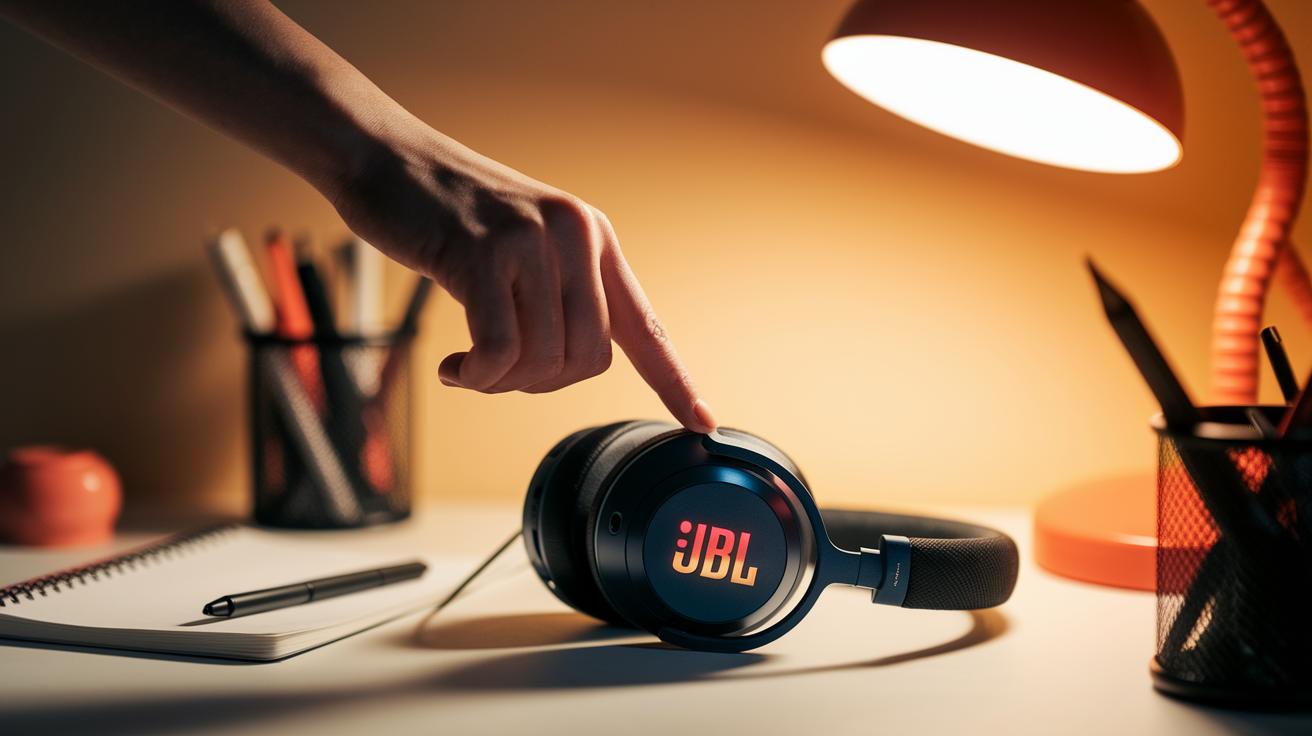
Start by checking the LED indicator on your JBL headphones. If there’s no blinking light, they might not be in pairing mode. Before you try any extra buttons or a restart, double-check that you’re pressing the right one. Think of the LED as a friendly wink from your headphones – if it’s missing, they’re not ready to connect.
If you’re still having trouble, give resetting a try. A factory reset clears out old pairings that might be causing confusion. To reset, turn off your headphones, then press and hold the right button for about 15 seconds until you see a new flash pattern. Make sure your battery is charged; sometimes, a quick reset is like letting your device take a short nap before it wakes refreshed and ready to connect.
Next, take a look at your device settings and check for any interference. Make sure your Bluetooth is switched on and active. If there are other Bluetooth devices nearby, try turning them off for a bit. It’s a bit like tuning a radio – adjust the settings until you catch that perfect connection signal.
Activating Pairing Mode on Various JBL Headphone Models
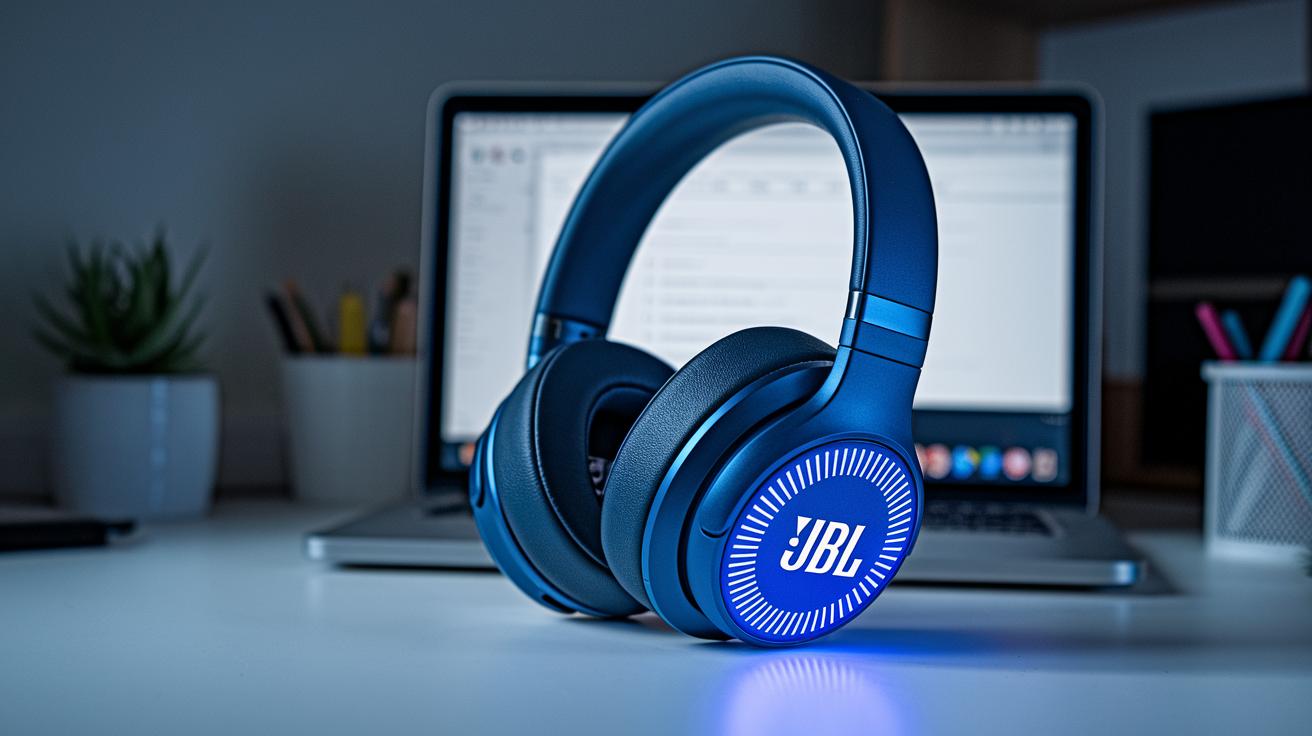
For the JBL Tune Series, simply press and hold the Bluetooth button for about 5 seconds. Once you see the LED blinking, you know your headphones are set and ready to connect.
For On-Ear and Over-Ear models, press and hold the power button for 5 seconds. You’ll notice the blue and white lights flashing, which means your device is in pairing mode. Sometimes, you might need to switch to A2DP mode for the best sound experience.
JBL Earbuds make things really easy. They jump into pairing mode as soon as you take them out of their charging case. For a few models, you might need to press and hold a button on the case, and when the LED flickers, your earbuds are ready to connect.
Keep an eye on the blinking lights during setup. They change pace to show that everything is working well and that your device is ready to pair. This visual check ensures that whether you’re using the Tune Series, On-Ear/Over-Ear models, or earbuds, your JBL headphones will give you the music experience you’re after.
Managing Multi-Device Connections and Reconnection

Many JBL headphones remember the devices you've paired with. It's like having a built-in buddy that recalls your favorite gadgets. This clever feature lets you switch easily from your smartphone to your tablet without missing a beat.
When you turn your headphones on, they usually try to reconnect automatically to the last device. This little auto-connection trick saves time so you can jump right into your music or calls. And if it doesn't happen, just toggle your Bluetooth settings for a quick fix, your headphones are always ready to get back in sync.
Need to pair with a different device or wipe out old connections? A factory reset is your go-to move. This resets the memory so your headphones can start fresh, giving you the freedom to connect with any device hassle-free.
Final Words
In the action, this guide broke down every step, from activating pairing mode on various JBL models to managing connections across devices. It covered setting up your headphones, quick Bluetooth tips, and smart troubleshooting techniques for smooth pairing.
We walked you through simple, clear steps and device-specific tips so you can easily learn how to pair jbl headphones. Enjoy a seamless, secure shopping experience and get the most out of your audio adventures.
FAQ
How do I pair my JBL Tune 510BT headphones?
Pairing JBL Tune 510BT headphones means pressing and holding the designated pairing button until the LED starts flashing. Once in pairing mode, simply choose “JBL Tune 510BT” from your device’s Bluetooth menu to connect.
How do I pair JBL headphones with my mobile device (iPhone, Android, or phone)?
Pairing JBL headphones with your mobile device involves turning on Bluetooth, then pressing and holding the pairing or power button until the LED blinks rapidly. After that, select your JBL model from the list on your phone.
How do I pair my JBL headphones with a laptop?
Pairing JBL headphones with a laptop requires activating the pairing mode by holding the Bluetooth or power button until the LED flashes. Then, open your laptop’s Bluetooth settings and select the JBL device from the available list.
Where is the Bluetooth pairing button on JBL headphones, and how do I use it?
The Bluetooth pairing button on JBL headphones is typically on an earcup or integrated with the power button. Press and hold it until the LED flashes, indicating the headphones are ready to be paired.
How can I pair my JBL headphones to a TV?
Pairing JBL headphones to a TV requires setting the headphones to pairing mode by holding the Bluetooth or power button until the LED blinks. Then, turn on your TV’s Bluetooth and select the JBL model from the device list.
How do I put JBL headphones—including wireless and JBL Go models—into pairing mode?
Putting JBL headphones into pairing mode is as simple as holding the dedicated Bluetooth or power button for a few seconds until the LED flashes. For JBL Go models, this action quickly triggers pairing mode for seamless connection.
Why might my JBL headphones not appear on my Bluetooth settings list?
JBL headphones may not appear on Bluetooth settings if they aren’t in pairing mode, if the battery is low, or if interference from other paired devices occurs. Checking these factors can help resolve the issue.